> ## Documentation Index
> Fetch the complete documentation index at: https://cstreams.mintlify.site/llms.txt
> Use this file to discover all available pages before exploring further.

# Diagnostic

> Settings for diagnosing and troubleshooting issues

## Overview

As you experiment, you will likely find edges cases specific to your PDF collection. You
can use the following settings to dig deeper into each run.

### Ignoring Files and Directories at Runtime

Within the `[project-root]/data` directory tree, any directory named `.runtime-ignore` and
its entire subtree will be skipped during processing. This is useful for troubleshooting
and moving nested directories around without breaking the hierarchy.

A leading `.` to hide the directory from the file system has no effect on processing.

You must set a value, but you don't need to create the folder until you need it.

[See a sample](/analysis-and-iteration/evaluation#use-runtime-ignore-folders-to-selectively-run-sets-of-files)
directory listing with nested `.runtime-ignore` directories

<ParamField query="RUNTIME_IGNORE_DIR_NAME" type="string" default=".runtime-ignore" required />

### Diagnostic Folder

The directory name for storing log data and diagnostic files. Relative to the project root
directory.

Example directory listing described on the
[Evaluation](/analysis-and-iteration/evaluation#log-file-page-images-and-extracted-text)
page.

<ParamField query="DIAGNOSTIC_FOLDER" type="string" default="logs" required />

### Save Diagnostic Files

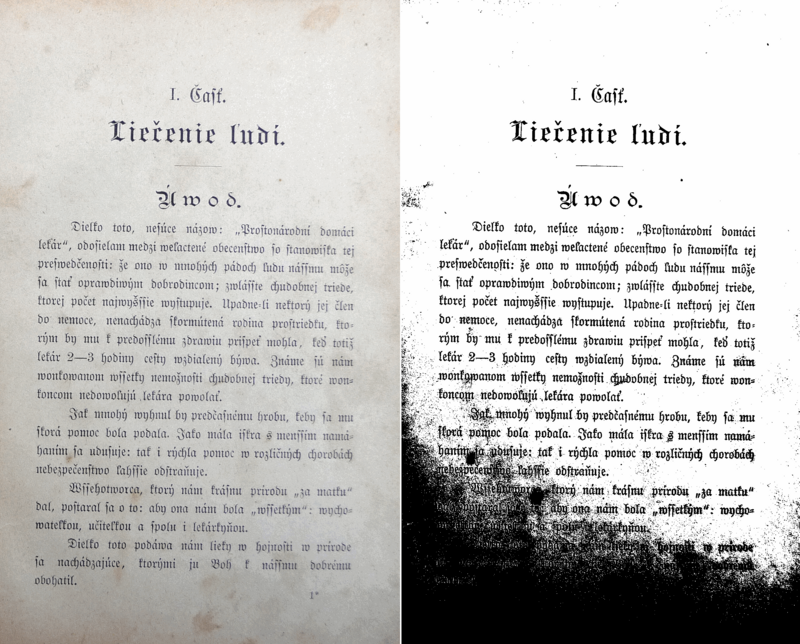
OCR is a complex process that can sometimes produce unexpected results. Enable saving
diagnostic files to help troubleshoot:

<div>
  <img src="https://mintcdn.com/cstreams/1iORXuSnPeObgRK8/images/binarisation.png?fit=max&auto=format&n=1iORXuSnPeObgRK8&q=85&s=3b90b91359131810d7ed89e1a696a167" alt="Comparison of original and enhanced images, demonstrating the effect of binarisation" title="Comparison of original and enhanced images, demonstrating the effect of binarisation" width="800" height="644" data-path="images/binarisation.png" />

  <div className="caption">
    From Tesseract docs: [Improving the quality of the
    output](https://tesseract-ocr.github.io/tessdoc/ImproveQuality.html)
  </div>
</div>

For each page in the document, diagnostic files can be saved:

**Images:**

* the original image, as found in the source PDF
* the enhanced image, after processing, to make it easier for OCR to read

**Text files:**

* the unstructured OCR results, as a plain text file
* the structured OCR results, as a markdown file
* vision analysis results (when local VLM is enabled)

Default leaves both off so routine runs stay light on disk usage. Toggle them on when you
need per-page artifacts for troubleshooting OCR quality or layout detection.

<ParamField query="SAVE_DIAG_PER_PAGE_IMG" type="boolean" default="false">
  Whether to save diagnostic images (original and enhanced) for each page.
</ParamField>

<ParamField query="SAVE_DIAG_TXT_PER_PG" type="boolean" default="false">
  Whether to save diagnostic text files (OCR results, structured markdown, vision analysis) for each page.
</ParamField>

For saved diagnostic images. PNG preferred for maintaining sharp detail.

<ParamField query="IMAGE_FORMAT" type="string" default="PNG" />

### AI Request and Response Logging

Controls how AI prompts and responses are handled in logs. These are never shown in the
terminal output, only in log files. Applies to both:

* OpenAI filename and metadata generation
* Ollama vision analysis

<ParamField query="INCLUDE_RAW_AI_REQUEST_IN_LOG" type="boolean" default="true">
  Whether to include raw AI requests (prompts) in log files.
</ParamField>

<ParamField query="INCLUDE_RAW_AI_RESPONSE_IN_LOG" type="boolean" default="true">
  Whether to include raw AI responses in log files.
</ParamField>

### Terminal Colors

Running the pipeline with `VERBOSE-TERM` gives rich output in the terminal. This gives
fine grained view into the progress and potential failures.

These [standard ANSI color codes](https://en.wikipedia.org/wiki/ANSI_escape_code#Colors)
are used to make the output more readable. Modify these to change the color scheme.

<ParamField query="CYAN" type="string" default="\033[96m" />

<ParamField query="GREEN" type="string" default="\033[92m" />

<ParamField query="YELLOW" type="string" default="\033[93m" />

<ParamField query="BLUE" type="string" default="\033[94m" />

<ParamField query="RESET" type="string" default="\033[0m" />
