> ## Documentation Index
> Fetch the complete documentation index at: https://cstreams.mintlify.site/llms.txt
> Use this file to discover all available pages before exploring further.

# How It Works

> A detailed look at the processing pipeline

<div class="pipeline-steps">
  <Tip>To just get going, follow the [Quickstart guide](/getting-started/quickstart).</Tip>

  <Steps>
    <Step title="Setup" stepNumber={0} id="step-0">
      A log file is created in the <a href="/config/diagnostic#param-save-diagnostic-images" class="param-field-link">DIAGNOSTIC\_FOLDER</a>, where all pipeline steps will be logged, along with raw prompt requests and responses.

      The pipeline begins by looking for PDFs in the <a href="/config/processing#data-folder" class="param-field-link">data</a> directory.

      PDF's are validated to ensure metadata access.
    </Step>

    <Step title="Preprocess pages" stepNumber={1} id="step-1">
      <div>
        <img
          src="https://mintcdn.com/cstreams/1iORXuSnPeObgRK8/images/flow__partials/flow__partial--step-1.jpg?fit=max&auto=format&n=1iORXuSnPeObgRK8&q=85&s=4bd5b22b0289d869fb283a76f8cc1e76"
          alt="Pipeline, Step 1: Load and preprocess PDF. Shows an
image of the front, body and back matter pages of a book"
          title="Step 1: Load and preprocess PDF"
          width="4743"
          height="1099"
          data-path="images/flow__partials/flow__partial--step-1.jpg"
        />
      </div>

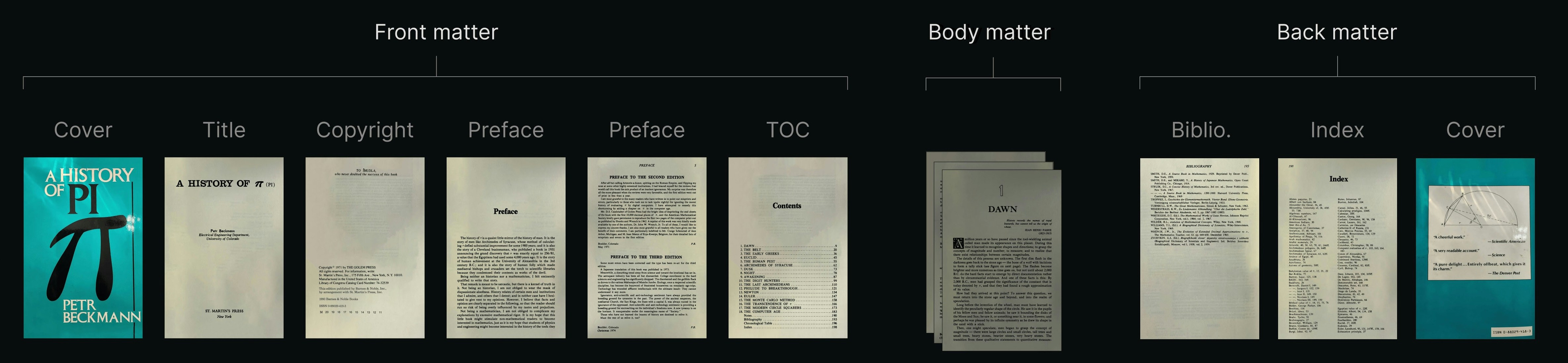
      For each PDF file, the script uses the `PyMuPDF` Python library to identify the front and back matter pages. [What are matter pages?](/key-concepts/matter-pages)

      By default, the first [8 front matter pages](/config/processing#front-matter) are processed. Body matter is always ignored, and back matter inclusion can be optionally configured with <a href="/config/processing#param-back" class="param-field-link">MATTER\_CONFIG.back</a> settings.

      Processed page images are then enhanced for OCR with the `PIL` (Pillow) Python library.

      Original and enhanced images are written to the diagnostic folder when <a href="/config/diagnostic#save-diagnostic-images" class="param-field-link">SAVE\_DIAG\_PER\_PAGE\_IMG=true</a>.
    </Step>

    <Step title="Run traditional OCR" stepNumber={2} id="step-2">
      <div>
        <img
          src="https://mintcdn.com/cstreams/1iORXuSnPeObgRK8/images/flow__partials/flow__partial--step-2.1.png?fit=max&auto=format&n=1iORXuSnPeObgRK8&q=85&s=3ac6075062955369715d9ef32ba229cd"
          alt="Pipeline, Step 2: Identify Page Types and Run Tesseract OCR.
Shows yellow text regions overlaid on the front and back matter pages, identifying the metadata fields"
          title="Step 2: Identify Page Types and Run Tesseract OCR"
          width="2000"
          height="1425"
          data-path="images/flow__partials/flow__partial--step-2.1.png"
        />
      </div>

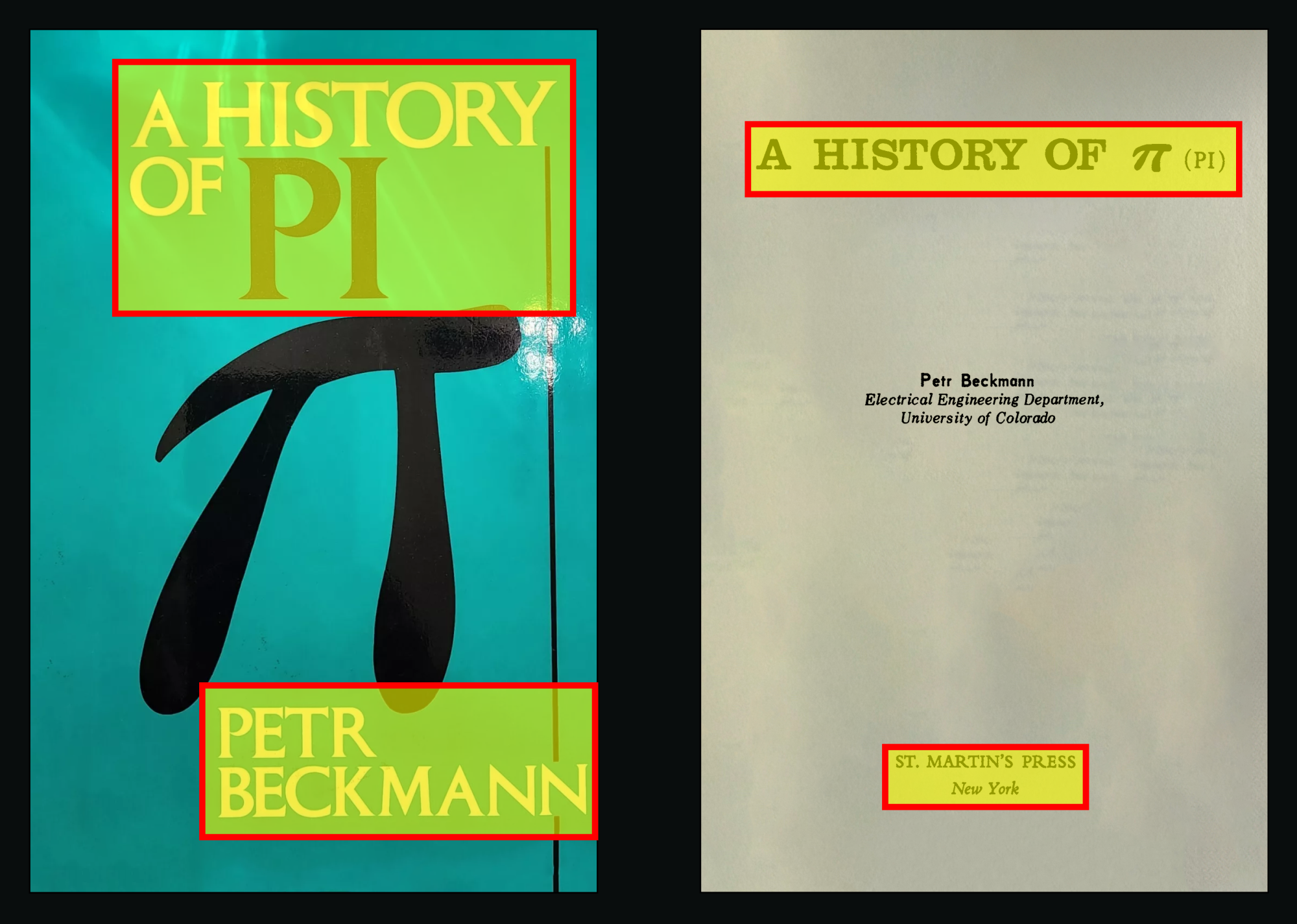
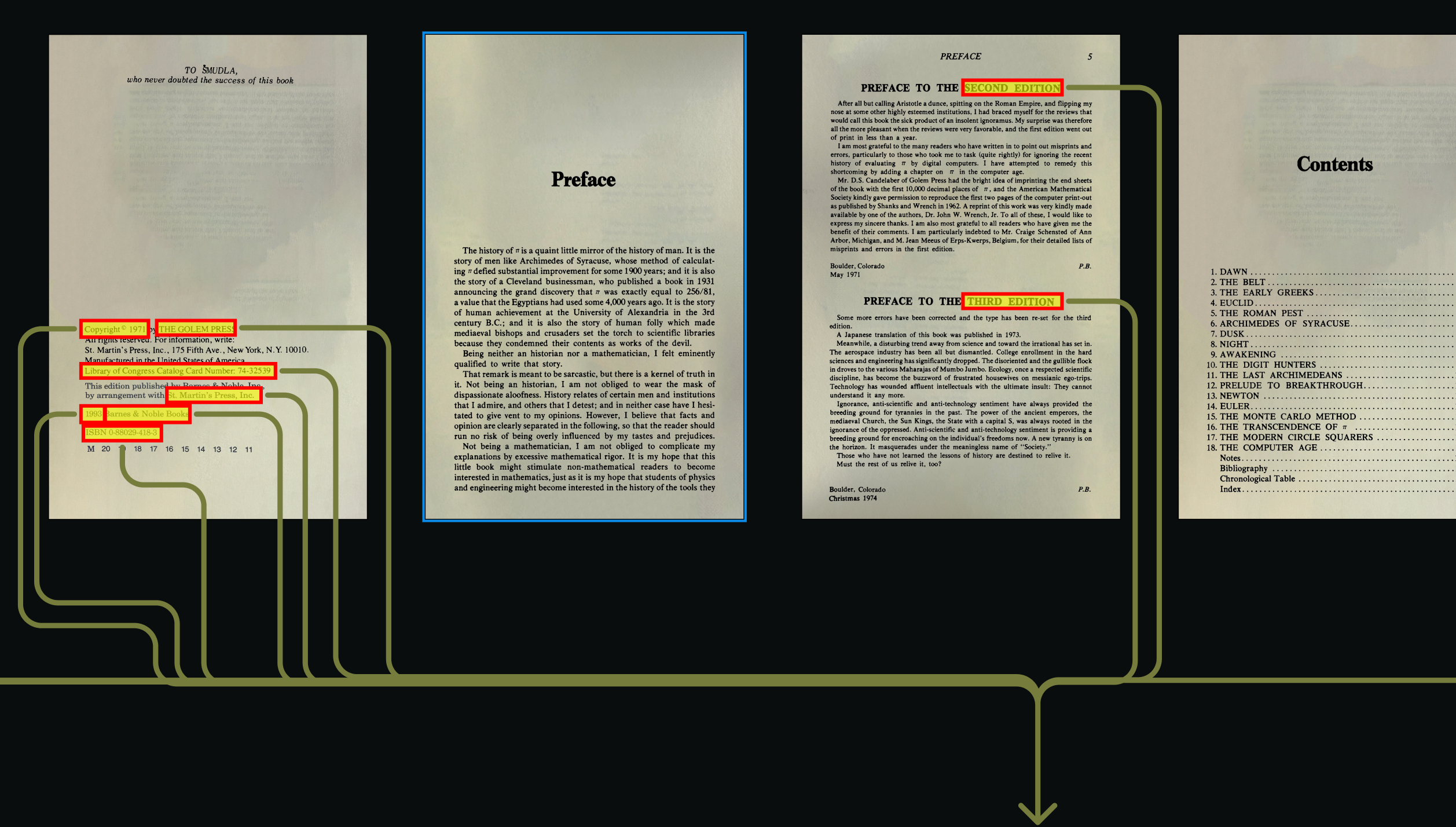
      Each page is identified by type (`text`, `image`, or `mixed`). [Tesseract OCR](/config/ai-models/tesseract) runs and quality is scored with <a href="/config/ai-models/tesseract#param-ocr-confidence-threshold" class="param-field-link">OCR\_CONFIDENCE\_THRESHOLD</a> values.

      This produces raw text content but doesn't preserve document structure or hierarchy.

      The extracted, unstructured text files are written to the diagnostic folder
      when <a href="/config/diagnostic#save-diagnostic-text" class="param-field-link">SAVE\_DIAG\_TXT\_PER\_PG=true</a>.
    </Step>

    <Step title="Extract structured text" stepNumber={3} id="step-3">
      <div>
        <img src="https://mintcdn.com/cstreams/1iORXuSnPeObgRK8/images/flow__partials/flow__partial--step-2.0--alt.png?fit=max&auto=format&n=1iORXuSnPeObgRK8&q=85&s=d5af619351ae3843c92bc4b90beebef5" alt="Pipeline, Step 3: Extract Structured Text with PyMuPDF4LLM. Shows the extracted text being transformed into a hierarchical structure with title, subtitle, and other metadata elements properly identified." title="Step 3: Extract Structured Text with PyMuPDF4LLM" width="2515" height="1428" data-path="images/flow__partials/flow__partial--step-2.0--alt.png" />
      </div>

      <a href="https://pymupdf.readthedocs.io/en/latest/pymupdf4llm" class="param-field-link">PyMuPDF4LLM</a> extracts text to Markdown. Unlike Tesseract, it can differentiate between titles and subtitles by detecting font size and style nuances.

      Extracted markdown files are written to the diagnostic folder when <a href="/config/diagnostic#save-diagnostic-text" class="param-field-link">SAVE\_DIAG\_TXT\_PER\_PG=true</a>.
    </Step>

    <Step title="Analyze with a VLM" stepNumber={4} id="step-4">
      When <a href="/config/ai-models/llama#param-analyze-with-vision" class="param-field-link">ANALYZE\_WITH\_VISION=true</a>,
      the page is analyzed by a Vision Language Model that holistically
      understands the page elements and their relationships.

      We use Meta's
      <a href="https://ai.meta.com/blog/llama-3-2-connect-2024-vision-edge-mobile-devices" class="param-field-link">llama3.2-vision</a>, hosted by Ollama locally, on your network or in the cloud.
      [Setup and configuration](/config/ai-models/llama#how-to-run-a-vlm) instructions.

      Analysis *text files* are written to the diagnostic folder when <a href="/config/diagnostic#save-diagnostic-text" class="param-field-link">SAVE\_DIAG\_TXT\_PER\_PG=true</a>.

      <Note>
        This step is in active development, and VLM results are not yet integrated into the pipeline.
      </Note>
    </Step>

    <Step title="Compose metadata prompt" stepNumber={5} id="step-5">
      <div>
        <img src="https://mintcdn.com/cstreams/1iORXuSnPeObgRK8/images/flow__partials/flow__partial--step-3.0.png?fit=max&auto=format&n=1iORXuSnPeObgRK8&q=85&s=00073a62fa458fd8a669cdb9d33acc8b" alt="Pipeline, Step 4: Consolidate Data and Generate LLM Prompt. Shows all the arrows of the extracted text regions consolidating into one arrow, leading to the LLM prompt and rules." title="Step 4: Consolidate Data and Generate LLM Prompt" width="2130" height="743" data-path="images/flow__partials/flow__partial--step-3.0.png" />
      </div>

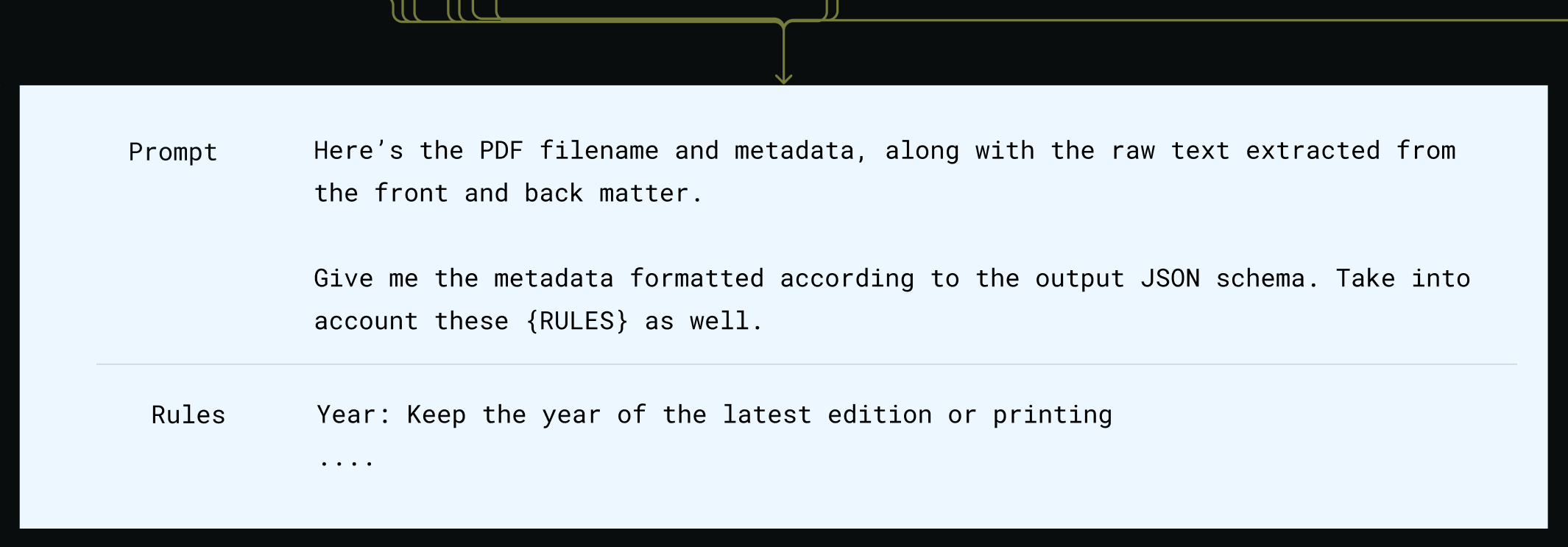
      All of the extracted data is consolidated into a single prompt and sent to the active provider defined by `SELECTED_MODEL_NAME`.

      The prompt includes detailed extraction rules, ie, what to do when multiple editions are found.
    </Step>

    <Step title="Process metadata response" stepNumber={6} id="step-6">
      <div>
        <img
          src="https://mintcdn.com/cstreams/1iORXuSnPeObgRK8/images/flow__partials/flow__partial--step-4.png?fit=max&auto=format&n=1iORXuSnPeObgRK8&q=85&s=8feb15c3a9716edf88a45384218e2746"
          alt="Pipeline, Step 5: Process LLM Response and Validate Metadata.
Shows the structured LLM response being processed and validated."
          title="Step 5: Process LLM Response and Validate Metadata"
          width="1741"
          height="1234"
          data-path="images/flow__partials/flow__partial--step-4.png"
        />
      </div>

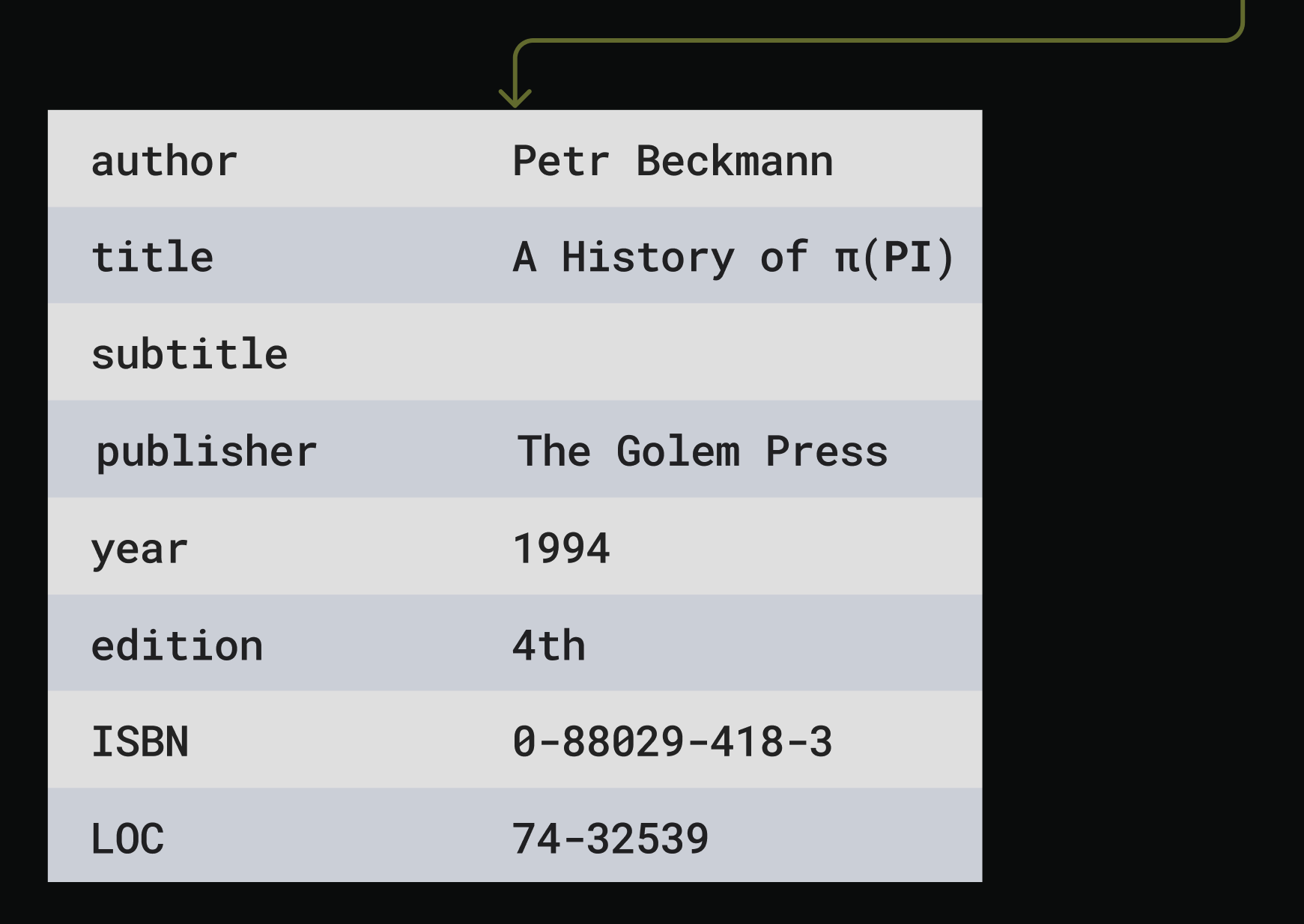
      OpenAI returns the metadata fields with confidence scores
      and generation rationale.

      This structured JSON response adheres to our defined
      schema, reducing hallucinations, alignment warnings, and pre/post-ambles.
    </Step>

    <Step title="Compose filename prompt" stepNumber={7} id="step-7">
      The prompt for filename generation is sent to OpenAI,
      with detailed format constraints:

      ```bash theme={null}
      [Title], [Subtitle], ([Author]), Publisher, ([Edition]), ([Year]).pdf
      ```

    </Step>

    <Step title="Process filename response" stepNumber={8} id="step-8">
      <img
        src="https://mintcdn.com/cstreams/1iORXuSnPeObgRK8/images/flow__partials/flow__partial--step-5.png?fit=max&auto=format&n=1iORXuSnPeObgRK8&q=85&s=054261c2fbb2a606b0915fd0f477ab22"
        alt="Pipeline, Step 6: Generate Filename with OpenAI.
Shows the final LLM response of the generated filename. This will be written to the file."
        title="Step 6: Generate Filename with OpenAI"
        width="2659"
        height="380"
        data-path="images/flow__partials/flow__partial--step-5.png"
      />

      The generated filename in the OpenAI response is
      cleaned of unsafe characters and trimmed to <a href="/config/processing#param-max-filename-length" class="param-field-link">MAX\_FILENAME\_LENGTH</a>

      Finally, when <a href="/config/processing#writing-changes" class="param-field-link">WRITE\_PDF\_CHANGES=true</a>,
      the generated metadata and filename are written to the file.
    </Step>
  </Steps>
</div>

## Annotation Export

When we pass `--with-annot-export` to the main CLI the processor writes UTF-8 sidecar files beside every annotated PDF.
The exporter names the markdown file after the cleaned destination filename, swaps `.pdf` for `--ann.md`, and overwrites
on every run so repeated passes stay deterministic. Sidecars live next to the PDFs so downstream sync tooling can
collect them without new path logic. We also generate `<filename>--ann.json`, which captures the geometry, colors,
and metadata needed to reconstruct the annotations later.

Sometimes we want annotation text without running the full metadata flow. Run the standalone helper below to walk a
directory and create sidecars that mirror the original filenames. The command accepts a single PDF path or a
directory of PDFs, matching file names case-insensitively.

```bash theme={null}
uv run src/scripts/export_annotations.py --verbose-term /Users/<username>/Desktop/path
```

Both paths rely on `extract_annotations_complex` so they capture highlights, strikeouts, and freeform notes exactly as
PyMuPDF exposes them. The JSON sidecar keeps placement and styling data so we can replay annotations onto a matching PDF.